How to Forward Classroom Messages to an Email Address
The Messages tool in the classroom houses all your sent/received messages and lets you compose and send messages to your professor or to classmates. If you would prefer to read these messages outside of the classroom, you can forward them to an email address of your choice by following the directions below. Note: Forwarding the message is for read-only purposes, and you cannot reply to these messages.
- Log into the ecampus and enter one of your current courses.
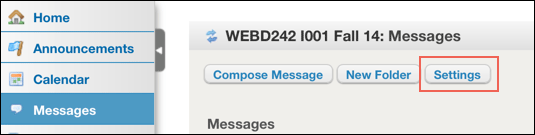
- On the left navigation menu of the classroom, select the Messages tool, then Settings.
- Select the Yes button for Auto Forward Messages, and enter a valid email address in the Email Address for Forwarding field.
- Click the Save Settings button.